User Manual & Getting Started Guide
This User manual walks you through the setup and functionalities of our products.
Select a Product Manual Section:
1. System Requirements
- Windows: Windows 7 / 8 / 10 / 11
- Disk Space (Alpha Keyboard): ~60 MB for core tools & database
- Disk Space (ABD- Dictionary): ~85 MB for core tools & database
2. User Guide for Alpha Keyboard (Typing Tool)
2.1 Installation
To install AKB (Alpha Keyboard Pro - Typing Cum Converter), double-click the AKBPro_Setup file inside AKB Typing Tool and follow the on-screen instructions.
After installation, an icon named Alpha Keyboard Pro will appear on your desktop. Open it by double-clicking, and a floating Toolbar will display on your screen. (You can drag it to your preferred location on screen, and it will remember your position preference.)
2.2 Basic Operation & Layout Selection
- Selecting Language: Choose your preferred Language and Keyboard (such as Assamese Inscript, Assamese Phonetic, etc.) directly in the Toolbar.
- Keyboard Change: Press
Shift + Spacebarto instantly switch between English and your chosen language layout without using the mouse.
2.3 What is the role of the Toolbar CheckBoxes?
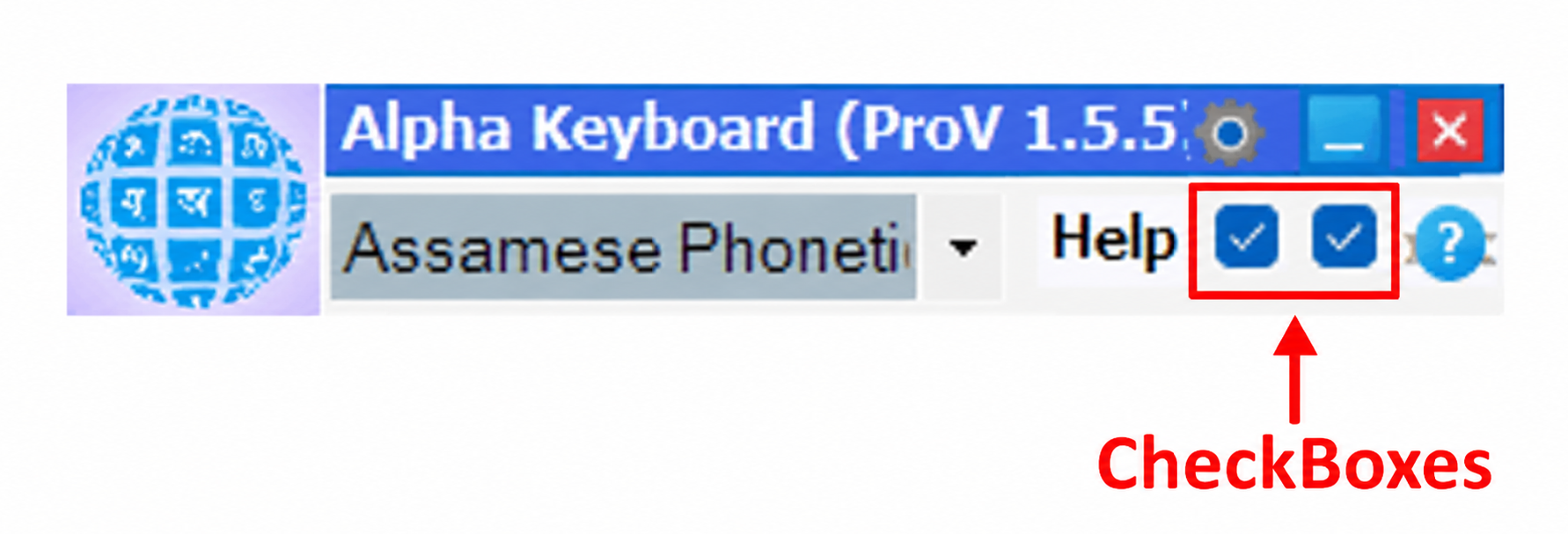 Figure 1: Alpha Keyboard Toolbar showing the two checkboxes checked
If both of the checkboxes in the Toolbar is checked, they activate Phonetic Advanced Mode (Automatic Juktakshar, No shift press, and filtered predictive suggestions).
When Advanced Mode is active, a dictionary-filtered predictive word list appears dynamically while typing.
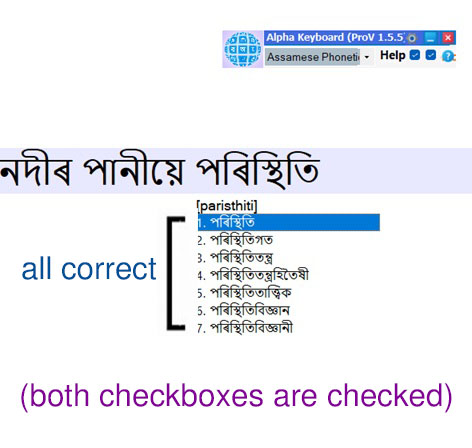 Figure 2: Both checkboxes checked. Hence filtered predictive list
Spacebar, Enter, Tab, or the corresponding Index Number shown.
Note: Except for the Spacebar, other selection keys do not insert a trailing space, allowing you to add more letters or a suffix to the inserted word seamlessly.
Supported Predictive Languages: Assamese, Bangla, Bodo, Hindi, Marathi, Meitei (Meitei Mayek), Odia, and Tamil (more languages are continuously being added).
2.4 What happens when only one CheckBox is checked?
-
In some PCs (usually with slower processors), the predictive typing shows a leftover initial character (eventually doubling it) if the user types a long word. If your PC shows such behaviour, uncheck one of the two checkboxes. It will only show raw cross-combinations of the characters you typed as suggestions, which are not filtered with the supplied dictionary. But it solves the lagging problem.
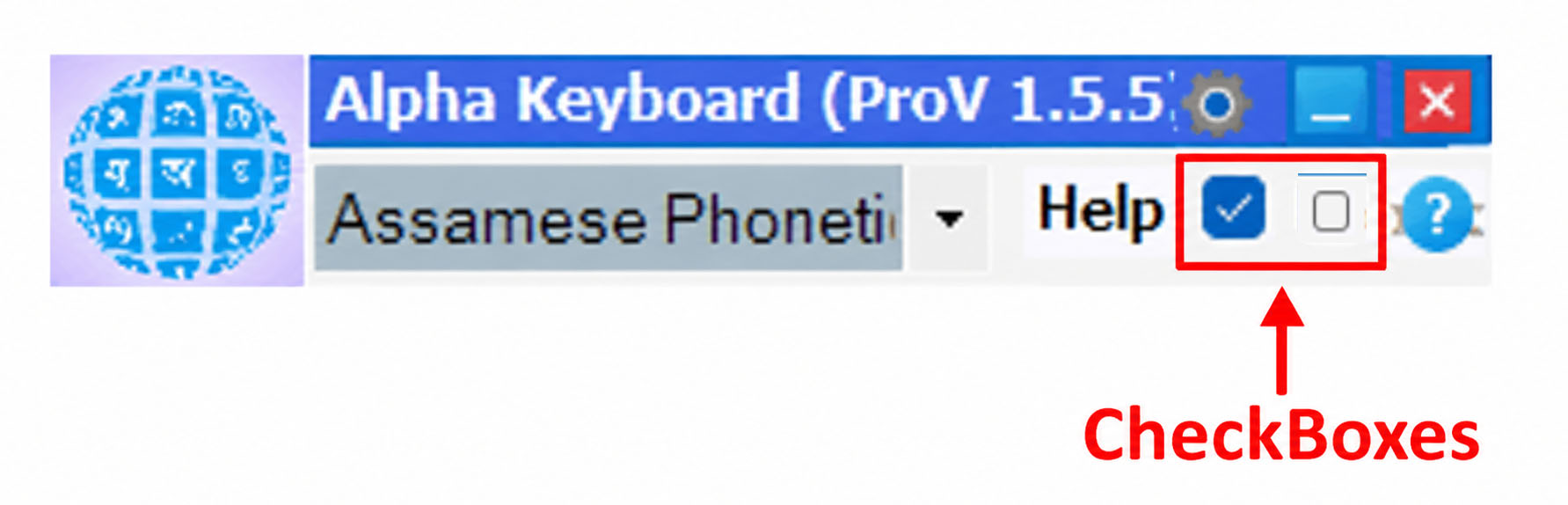 Figure 3: Alpha Keyboard Toolbar showing only one checkbox checked
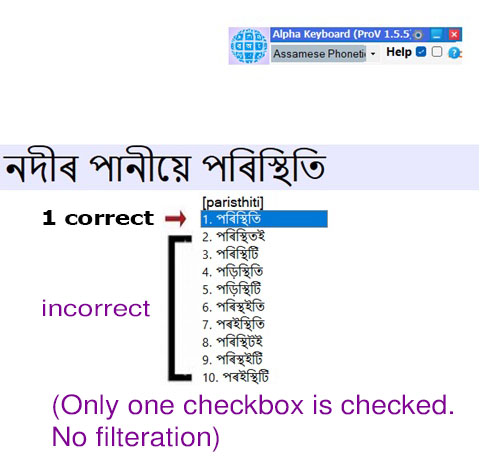 Figure 4: Only one checkbox checked. Hence unfiltered predictive list
-
When NEITHER box is checked:
The suggestion window is completely disabled. In Phonetic mode, this reverts to Primitive Phonetic mode where you pressxbetween two letters to form a conjunct (संयुक्ताक्षर / যুক্তাক্ষৰ) of them. Press the Help button on the toolbar to view the full layout map.
2.5 How to Use the Converter? (It is only for Assamese)
- Click the Question Mark (?) icon on the Toolbar and select Converter.
- Choose your Source Encoding, paste your source text into the input box, and click the Arrow button to convert.
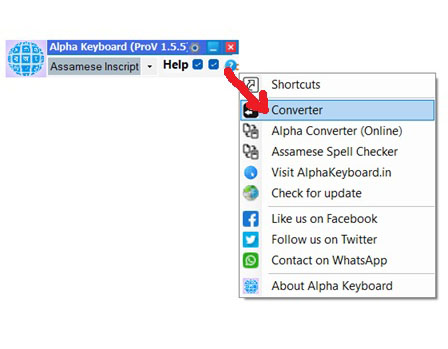 Figure 5: Alpha Keyboard Converter
If you are converting text from Unicode to Geetanjali font, the text in the output box may appear as junk characters on screen. This is expected—simply copy and paste the converted output into Adobe PageMaker (ensure PageMaker is installed on your PC).
2.6 Converter Modes: Auto Font vs. Perfect Conversion
Auto Font Option:
When you select Auto Font, the converted text (after pasting it into PageMaker) automatically preserves Assamese and English numbers, English characters, symbols, and other non-Assamese text exactly as they appear in the source text. This saves significant manual re-formatting time.
However, this option has few small flaws: During the pasting process a few specific conjuncts (such as ম্ব, ন্ধু, স্ব, and ক্স) may appear in distorted forms. So after conversion you will need to go through the resulting text. If you notice a distorted conjuncts, simply convert that single word separately using Perfect Conversion and paste it over the distorted text.
Perfect Conversion Option:
When using Perfect Conversion, all conjuncts convert flawlessly without distortion. However, after pasting into PageMaker, you must manually assign the appropriate fonts to different text elements:
GeetanjaliLightfor Assamese textGeetanjaliporGeetanjalipLightfor Assamese numerals- Any standard English font (e.g., Times New Roman, Arial) for English text
3. User Guide for ABD (Dictionary)
3.1 Installation
Open the folder named Dictionary_PCVersion and run the ABD5Dict_Setup (you can double click on it). Then follow the prompts to complete the installation and database setup on your PC.
If successfully installed, you will see an icon called ABD V5 on your desktop area.
Open it and search a word.
It is a bilingual dictionary that lets you search words from English to Assamese and Assamese to English. When you type an English word, the English-Assamese side works, and when you type an Assamese word, the Assamese-English side works.
You can also click any word inside the definition box to look up its meaning. To return to your original word, simply click Back. The Next button lets you navigate forward again.
Alternatively, you can navigate Back and Next using keyboard shortcuts: Alt + Left Arrow to go back, and Alt + Right Arrow to go forward.
Press Ctrl + I to clear the search box instantly.
You can keep the dictionary window minimized while working in another application, then restore it instantly without using the mouse by pressing Shift + Ctrl + M.
Several other convenient shortcuts are also available to make dictionary navigation effortless. Please refer the below image.
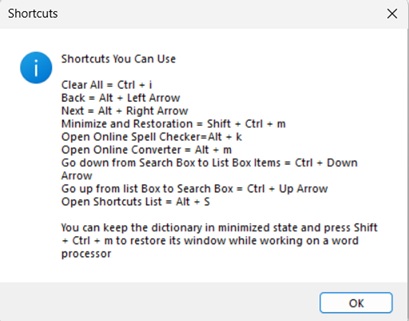 Figure 5: You can open this dictionary Shortcuts by pressing Alt + S
3.3 Android Version
Note on Android Compatibility: Currently, the app is not compatible with Android 15 and above. We are actively working on an update to support newer devices.
You can search for ABD Dictionary on the Google Play Store and download it if it is available for your device.
The Android version includes a built-in Assamese keyboard by default. However, you can choose to use your phone's native keyboard anytime by adjusting the option in Settings.
Need More Support?
For additional assistance or support inquiries, contact us at: 7002030550 or send us a message via our Contact Form.
↑ Back to Top